Obsidian Hotkeys: The Moment You Stop Clicking and Start Thinking
You do not wake up one day and decide, "I should learn hotkeys."
It usually happens like this:
You are mid-thought in Obsidian. You are writing something that actually matters. A connection appears. You reach for the mouse to do a "quick thing" (open a pane, find a command, jump to a note) and when you come back... the sentence is gone. Not deleted. Just gone from your working memory.
Nothing terrible happens. You just pay the invisible tax: attention.
That is the epiphany bridge. The moment you realize the real cost was never the seconds. It was the thread of thought.
Hotkeys are how you stop paying that tax.
By the end, you will:
- Add custom hotkeys for the commands you actually run.
- Resolve conflicts without breaking your workflow.
- Build a tiny weekly loop so hotkeys become automatic.
Rule of thumb: if a command is used more than 10 times per week, a hotkey is not a power-user extra. It is baseline.
Menu search is navigation. Hotkeys are direct execution.
Obsidian is built for this: hotkeys are customizable shortcuts for Obsidian commands in Settings -> Hotkeys, and the fastest way to see a command's current hotkey is often the Command palette.
Your goal is not "memorize everything."
Your goal is "never lose the thread."
Obsidian hotkey quick links
- Download cheat sheet PDF (Windows/Linux)
- Download cheat sheet PDF (macOS)
- How to set hotkeys in Obsidian
- How to change keyboard shortcuts
- How to fix hotkey conflicts
- Obsidian hotkeys not working
- Hotkeys not binding
- Reset hotkeys to default
- hotkeys.json empty
- Hotkey conflicts
- FAQ: Obsidian hotkeys
Default Obsidian keyboard shortcuts and hotkeys
Sometimes you do not want a guide.
You want a cheat sheet.
If you searched for "Obsidian keyboard shortcuts" or "Obsidian hotkeys" and just want the defaults, start here.
Printable cheat sheets:
These are common desktop defaults. Your exact set can differ by version, OS, and which core plugins you have enabled. The fastest way to confirm any command is to open the Command palette and look at the hotkey shown next to it, or check Settings -> Hotkeys.
Legend:
- Windows/Linux uses Ctrl and Alt.
- macOS uses Cmd and Option.
- In the table below, macOS "Ctrl" means the Control key (yes, Obsidian uses Control for tab switching).
| What you want | Windows/Linux | macOS |
|---|---|---|
| Open command palette | Ctrl+P | Cmd+P |
| Open quick switcher | Ctrl+O | Cmd+O |
| Search across the vault (all files) | Ctrl+Shift+F | Cmd+Shift+F |
| Open graph view (global) | Ctrl+G | Cmd+G |
| Navigate back | Ctrl+Alt+Left | Cmd+Option+Left |
| Navigate forward | Ctrl+Alt+Right | Cmd+Option+Right |
| Toggle Reading view (edit/preview) | Ctrl+E | Cmd+E |
| Open settings | Ctrl+, | Cmd+, |
| Create a new note | Ctrl+N | Cmd+N |
| Search current file | Ctrl+F | Cmd+F |
| Bold | Ctrl+B | Cmd+B |
| Italic | Ctrl+I | Cmd+I |
| Insert a link | Ctrl+K | Cmd+K |
| Indent | Ctrl+] | Cmd+] |
| Unindent | Ctrl+[ | Cmd+[ |
| Jump into the selected backlink | Alt+Enter | Option+Enter |
| New tab | Ctrl+T | Cmd+T |
| Next tab | Ctrl+Tab | Ctrl+Tab |
| Previous tab | Ctrl+Shift+Tab | Ctrl+Shift+Tab |
| Reopen closed tab | Ctrl+Shift+T | Cmd+Shift+T |
If you only memorize three, make them these:
Command palette. Quick switcher. Search in all files.
Everything else can be discovered when you need it.
If you want the full tab list (jump to tab 1-9, etc), Obsidian documents it here: Tabs. And if you want the full list of text editing shortcuts (copy/paste/undo/move by word), Obsidian documents those separately here: Editing shortcuts.
The friction tax
Every click is a context switch:
- your eyes leave the sentence
- your hand leaves the keyboard
- your working memory drops the next phrase
If you do this a few times per session, it feels fine.
If you do it hundreds of times per week, it becomes drag that you stop noticing.
This guide is your map out of that drag.
The plan
Phase 1: Claim your 3 anchors.
- Command palette
- Quick switcher
- Search
Phase 2: Pick one lane and install a starter keymap.
- Navigation lane
- Writing lane
- Plugin-first lane
Phase 3: Fortify it so it survives conflicts, sync, and keyboard layouts.
If you do only Phase 1 today, you still win.
How to set hotkeys in Obsidian
- Open Settings -> Hotkeys.
- Search the command name (plugin commands often include a plugin prefix, so searching "connections", "template", or the plugin name is faster).
- Click the plus icon.
- Press your key combo.
- Save.
- Verify it immediately: trigger it 3 times in the exact context you will use it.
Obsidian supports multiple bindings per command, so you can keep the default while you learn your new mapping (documented on the Hotkeys page).
Claim your 3 anchors
These are your "never get lost again" keys. They are not optional. They are your safety rope.
Anchor 1: Command palette
The Command palette is your universal remote:
- run commands you do not remember
- confirm what a command is actually called
- see the current hotkey next to the command
- discover new commands without browsing menus
Obsidian explicitly calls this out as the fastest way to view hotkeys on the Hotkeys page.
Bind rule: keep this hotkey sacred. If it is already comfortable, do not change it.

Anchor 2: Quick switcher
Quick switcher is how you "teleport" to any note once your vault grows.
Why it matters: it replaces a chain of actions (file explorer -> scroll -> click) with one action (invoke -> type -> enter).
Anchor 3: Search
Search keeps you calm when you cannot remember where a note lives. If you learn only one search hotkey, make it global search across the vault.
How to change keyboard shortcuts
This is the moment the hero stops wandering and picks a weapon.
You do not need 40 shortcuts.
You need a small set that covers 80% of daily movement and the 20% of repeated actions that power your workflow.
How to read the keymaps
- "Windows/Linux" uses Ctrl and Alt.
- "macOS" uses Cmd and Option.
- If you move between OSes, you want "Mod muscle memory": Obsidian commonly treats Mod as Ctrl on Windows/Linux and Cmd on macOS (see how hotkeys work in Hotkeys).
Conflict-safe principle: avoid OS-global shortcuts (Alt+Tab, Cmd+Space) and avoid basic text-editing shortcuts like copy/paste/undo, because those are part of system and editor behavior (see Editing shortcuts).
Bonus principle: because Obsidian supports multiple bindings per command (see Hotkeys), you can keep defaults while learning new hotkeys.
Pick one lane this week
Do not install all three lanes at once.
Pick the lane that matches the problem you feel most often:
- If you feel lost: Navigation lane.
- If you feel slow while writing: Writing lane.
- If you keep reaching for a plugin button: Plugin-first lane.
Shipping one working lane beats planning three.
Lane 1: Navigation
This lane is about moving without breaking your thought.
| Outcome | Command (find by name in Hotkeys) | Windows/Linux | macOS | Why this works |
|---|---|---|---|---|
| Run anything | Command palette: Open command palette | Ctrl+P | Cmd+P | Your universal remote; Obsidian recommends this workflow via the Command palette. |
| Teleport to a note | Quick switcher: Open quick switcher | Ctrl+O | Cmd+O | Fastest way to jump notes as your vault grows. |
| Search the whole vault | Search: Search in all files | Ctrl+Shift+F | Cmd+Shift+F | Common pattern across tools; does not collide with core editing. |
| Create a new note | File: New note | Ctrl+N | Cmd+N | Low friction capture. If you prefer, use Ctrl+Alt+N / Cmd+Option+N. |
| Navigate back | Navigate back | Ctrl+Alt+Left | Cmd+Option+Left | Undo navigation without reaching for UI history. |
| Navigate forward | Navigate forward | Ctrl+Alt+Right | Cmd+Option+Right | Completes the navigation loop. |
| Open settings | Open settings | Ctrl+, | Cmd+, | Standard preferences shortcut across apps. |
Lane 2: Writing
This lane is about staying in flow while editing and structuring notes.
| Outcome | Command (find by name in Hotkeys) | Windows/Linux | macOS | Why this works |
|---|---|---|---|---|
| Open today's note | Daily notes: Open today's daily note | Ctrl+Shift+D | Cmd+Shift+D | Makes daily capture automatic; rarely OS-reserved. |
| Toggle reading view | Toggle reading view | Ctrl+Alt+V | Cmd+Option+V | "V for View" without colliding with common editing. |
| Toggle bold | Editor: Toggle bold | Ctrl+B | Cmd+B | Common muscle memory from many editors; fast formatting. |
| Toggle italic | Editor: Toggle italic | Ctrl+I | Cmd+I | Same idea; stays consistent. |
| Toggle code | Editor: Toggle code | Ctrl+` | Cmd+` | Keeps code formatting effortless; backtick is mnemonic. |
| Toggle checkbox status | Toggle checkbox status | Ctrl+L | Cmd+L | High-leverage for task workflows; note layout caveats in troubleshooting. |
Note: command names can vary slightly by Obsidian version and which core plugins are enabled. If you cannot find a command in Settings -> Hotkeys, open the Command palette, type the phrase (like "toggle checkbox"), and use the exact command name you see there.
Lane 3: Plugin-first
This lane is for when you keep clicking plugin UI (Smart Connections, Smart Chat, Smart Templates, or any "smart" workflow) and want those actions to become frictionless.
The goal is not to bind everything. It is to bind the 1 to 3 plugin actions you actually run every day.
Pattern recommendation:
- Use a dedicated "plugin lane modifier family" so plugin hotkeys do not collide with navigation and writing.
- A solid default is Ctrl+Alt on Windows/Linux and Cmd+Option on macOS, since those are less crowded than Ctrl/Cmd alone.
| Outcome | Command (your plugin will define the exact name) | Windows/Linux | macOS | Why this works |
|---|---|---|---|---|
| Open your primary smart plugin view | Example: "Smart Connections: Open" | Ctrl+Alt+S | Cmd+Option+S | "S for Smart"; easy to reach; usually conflict-resistant. |
| Trigger your most common smart action | Example: "Smart Chat: New chat" | Ctrl+Alt+C | Cmd+Option+C | "C for Chat"; consistent with the plugin family. |
| Run your most-used template action | Example: "Templates: Insert template" or plugin equivalent | Ctrl+Alt+T | Cmd+Option+T | "T for Template"; high leverage for repeatable structure. |
| Process current note with your smart workflow | Example: "Smart ...: Process current note" | Ctrl+Alt+P | Cmd+Option+P | "P for Process"; pairs well with automation habits. |
| Toggle your plugin side panel | Example: "Toggle ... panel" | Ctrl+Alt+K | Cmd+Option+K | Keeps plugin UI accessible without mouse travel. |
Because plugin command names vary, treat the "Command" column as a targeting method:
- Use Command palette to find the exact command name.
- Then bind it in Settings -> Hotkeys.
This is the fastest path to making Smart Plugins feel like a reflex instead of a button hunt.
60-second verification
Do this now. Not later. Later is where hotkeys die.
For each new hotkey:
- Trigger it 3 times in a row.
- Test it in the view/pane you actually use (editor focus matters).
- Confirm it does not interfere with your normal editing shortcuts.
If one hotkey feels awkward after 24 to 48 hours, swap it. Do not power through bad ergonomics.
Fortify your keymap
You are no longer just "setting shortcuts." You are building a system. Systems fail in predictable ways. Here is how to make yours durable.
Trial 1: Conflicts
A conflict is when two commands share the same chord. Conflicts show up in the Hotkeys settings, and users report you can click the conflict indicator or the red binding to isolate the overlapping commands (see the community discussion at this conflicts thread).

Conflict resolution rule:
- Protect basic editing behavior described in Editing shortcuts.
- Protect your anchors (Command palette, quick switcher, search).
- Make plugin hotkeys earn their chord. Prune aggressively.
Trial 2: Visibility
Once you install enough plugins, answering "what owns Ctrl+Alt+B" becomes annoying.
Two community tools help:
- Hotkey Helper adds affordances to jump to plugin hotkeys/settings and spot conflicts.
- Keyboard Analyzer visualizes hotkeys on a keyboard layout so you can see collisions and blank space.
To audit your current map quickly, use the Hotkeys filter that shows assigned hotkeys (documented on Hotkeys).
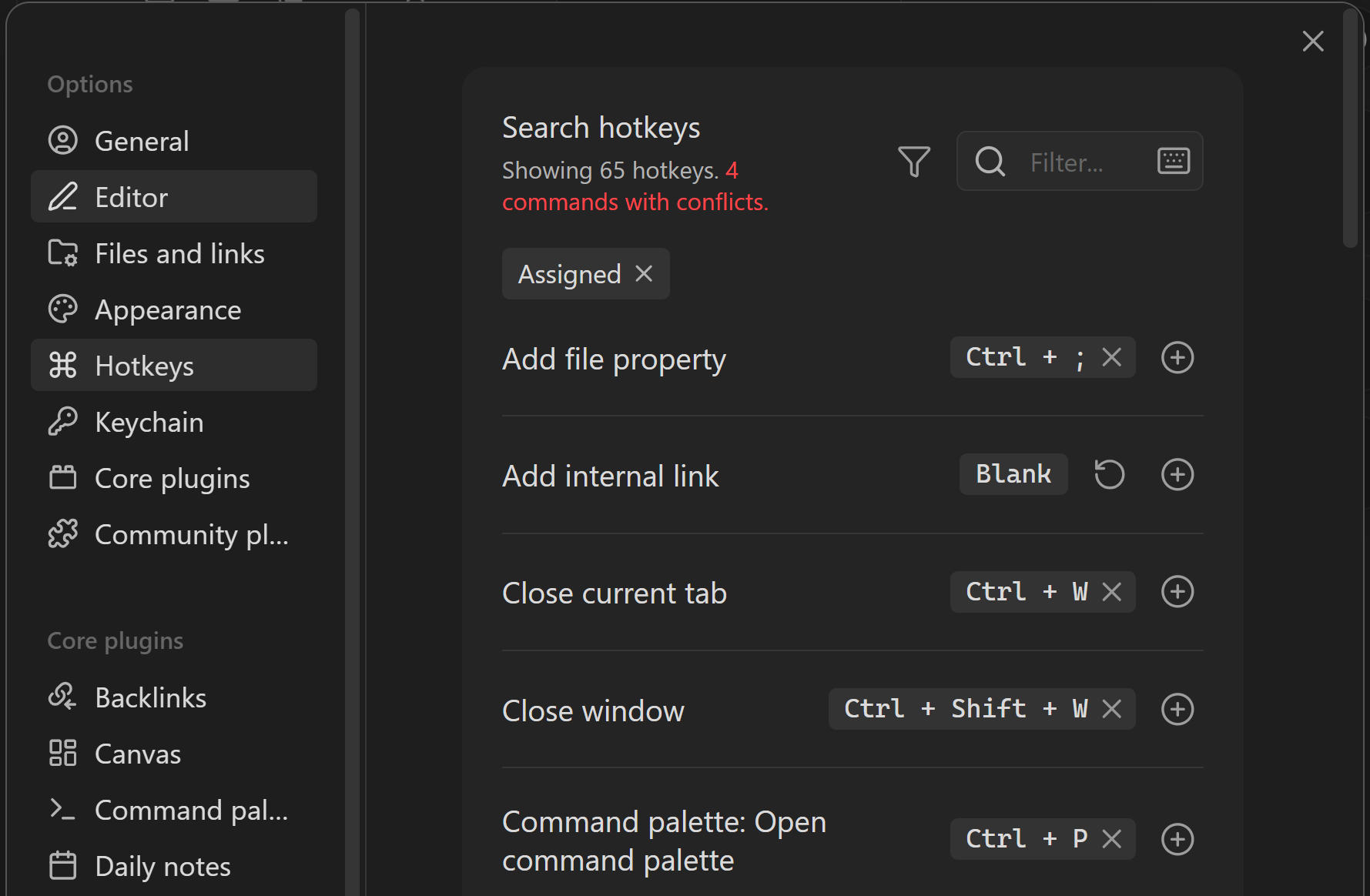
If you want to learn hotkeys while you work, consider Key Promoter, which surfaces shortcuts as you click UI buttons.
Trial 3: The file that matters
Your vault has a hidden configuration folder that stores settings like hotkeys (see How Obsidian stores data). By default, that folder is named .obsidian.
Obsidian stores hotkeys in a dedicated hotkeys.json file, noted in the Obsidian 0.12.10 changelog where hotkeys.json is stored separately to facilitate independent syncing.
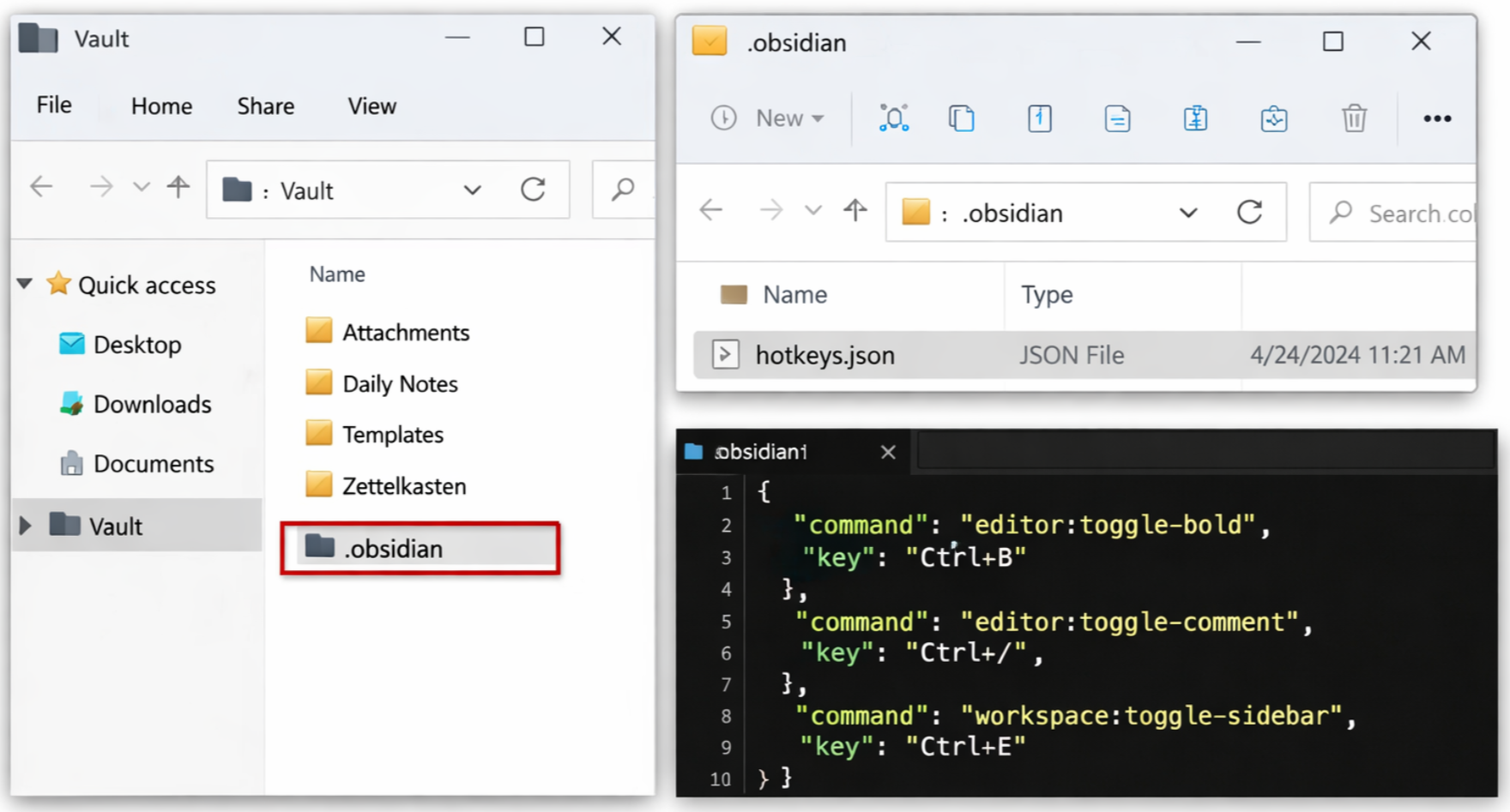
Practical takeaway: if you back up or migrate only one hotkeys-related file, copy .obsidian/hotkeys.json.
Real-world failure modes exist:
- Some users report hotkeys failing to bind until
hotkeys.jsonexisted (see this thread). - Others report
hotkeys.jsonbeing overwritten or emptied during sync, recoverable via version history (see this thread).
Trial 4: Sync and profiles
If you use Obsidian Sync, configure vault configuration sync on each device in Sync settings.
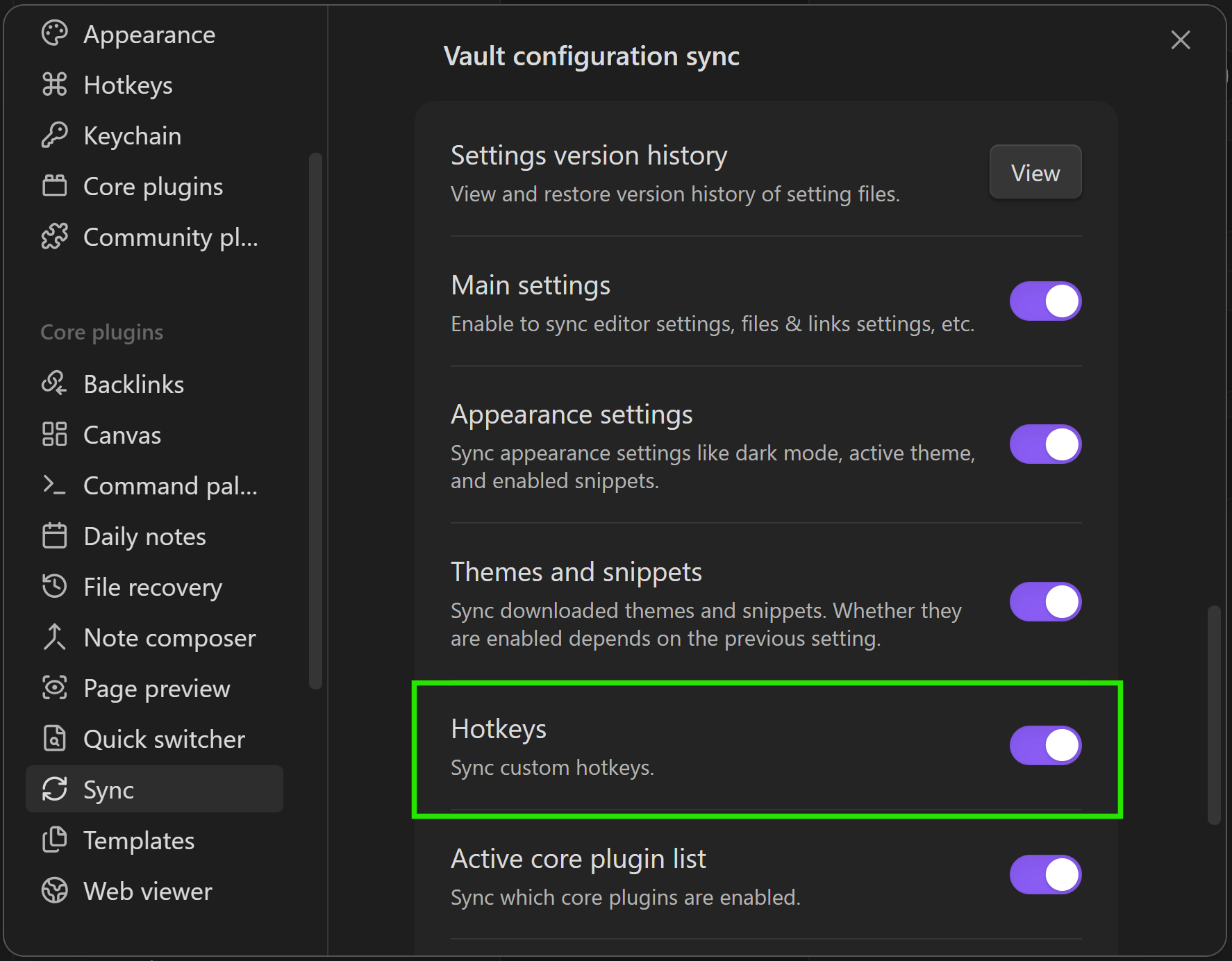
If you need different hotkeys per device (laptop vs mobile, macOS vs Windows), use an alternate configuration folder via Configuration folder. This keeps separate hotkeys.json files per profile.
How to fix hotkey conflicts
In Settings -> Hotkeys, run each of these checks in order:
- Filter by assigned shortcuts and identify duplicate key combos.
- Open each conflict and keep the command with higher weekly usage.
- Reassign the lower-value command to a nearby chord (same modifier pattern when possible).
- Re-test both commands in their real pane context.
If you want additional conflict examples, the Obsidian forum has a focused conflict workflow in this conflicts thread.
Obsidian hotkeys not working
Most failures come from conflicts, focus context, layout changes, or an empty config file. Use the sections below as a deterministic check order.
Troubleshooting
Start here and stop as soon as your situation matches.
1) Are you trying to change a text-editing shortcut
Examples: copy/paste, undo/redo, word navigation.
Those are described as Editing shortcuts and generally cannot be customized inside Obsidian. Adjust them at the OS level instead.
2) Hotkeys not binding
In Settings -> Hotkeys, click plus and press the chord.
If it does not register:
- Make sure you are not trying to bind a "typing chord" like Shift+Letter (a user report shows confusion around this in Hotkeys not binding).
- Confirm
.obsidian/hotkeys.jsonexists (see this binding issue thread). - Temporarily test in Restricted mode to rule out plugin interception.
3) Hotkey conflicts
Check conflicts in Hotkeys and isolate overlaps (see the click-to-filter discussion at this conflicts thread). Remove or reassign one of the conflicting bindings.
4) Does the hotkey stop working when you change keyboard layouts
Obsidian notes that hotkeys display as a US layout and are expected to work based on keys pressed as long as you do not change layout after binding (see Hotkeys). In practice, layout switching can be messy.
Try:
- Switch back to the layout you used when you created the binding.
- Remove and re-add the hotkey under your preferred layout.
- If you use non-English layouts, see the reported workaround in this Ctrl+L thread.
- If you use a custom Windows layout, keyboard event capture limitations are discussed in this custom layout thread and non-Latin issues appear in this thread. Choose chords that rely less on letter identity.
5) hotkeys.json empty
- Confirm your sync includes the vault config folder described in How Obsidian stores data.
- If you use Obsidian Sync, verify Hotkeys are enabled under vault configuration sync in Sync settings.
- If
hotkeys.jsonbecame empty, restore via version history as discussed in this thread.
How to make this stick
Create a note named Hotkeys - Core.md and list only your active set. Start with 3 to 7.
7-day loop:
- Day 1: assign 3 hotkeys.
- Days 2-3: use only those 3 for the repeated actions they replace.
- Day 4: remove or swap the one that feels awkward.
- Days 5-7: keep the final set and log misses (one bullet per day).
After week one, add at most 2 new hotkeys per week.
Once a week, open Settings -> Hotkeys, use the assigned-only filter, and delete dead bindings. The goal is not to collect shortcuts. The goal is to keep a small set that protects your attention.
You do not need 40 shortcuts.
You need 3 that you actually use.
FAQ: Obsidian hotkeys
How do I set a custom hotkey in Obsidian?
Open Settings -> Hotkeys, search for a command, click the plus icon, and press your preferred key combo. Then trigger it three times in your normal workflow to confirm it feels natural.
Why are my Obsidian hotkeys not working?
Most failures come from shortcut conflicts, pane focus, or command-name mismatch. Check conflicts in Hotkeys settings, verify you're in the correct editor/view, and confirm the exact command name in the Command palette.
What are the best starter hotkeys for Obsidian?
Start with three anchors: Command palette, Quick switcher, and Search in all files. This gives you reliable navigation and command execution before adding plugin-specific shortcuts.
How many hotkeys should I learn at once?
Start with 3 and add at most 2 per week. A small, reliable keymap is better than a large one you forget.
What is the fastest way to customize Obsidian hotkeys?
Use Settings -> Hotkeys, search the exact command name, then add a binding and test it three times in your real workflow context.
Why are my Obsidian keyboard shortcuts not working?
Most failures come from conflicts, keyboard layout changes, or missing/unsynced hotkeys.json. Use the troubleshooting section below in that order.
Why are my hotkeys not binding after I press the keys?
Usually this means the chord is reserved by your OS/app, or the editor focus is not in the pane where the command can run. Try a different modifier family and immediately re-test in the exact pane where you use that command.
Can I keep default shortcuts while testing new ones?
Yes. Obsidian supports multiple bindings per command, so you can test a custom shortcut before removing the default.
Can I customize every keyboard shortcut in Obsidian?
No. Obsidian-specific command hotkeys are customizable in Settings -> Hotkeys. Many text-editing shortcuts are controlled by your operating system and are documented under Editing shortcuts.
How do I reset hotkeys to default in Obsidian?
Open Settings -> Hotkeys, search the command, remove custom bindings, and keep the default binding. If many commands are affected, restore from your synced vault history before rebuilding your active set.